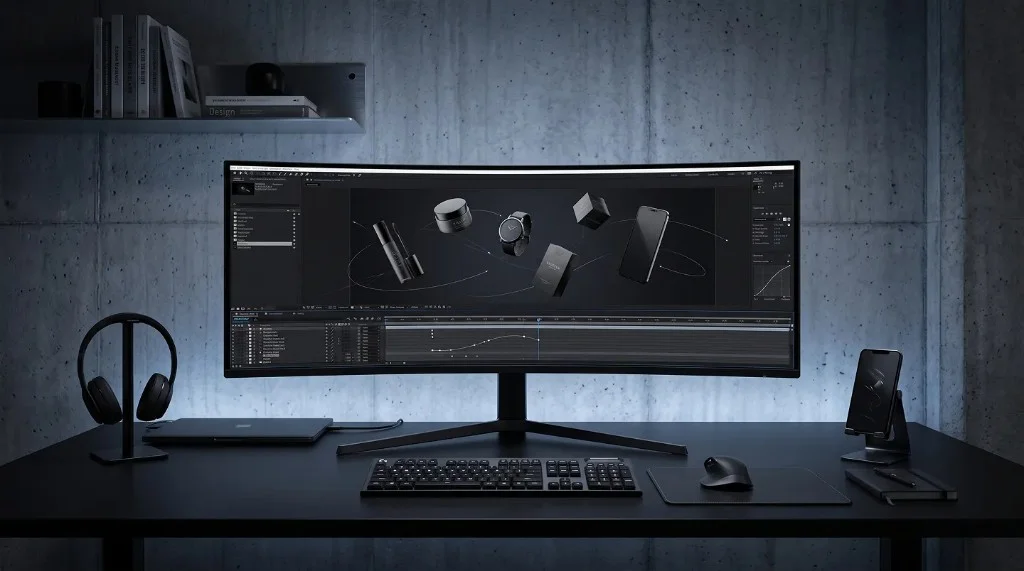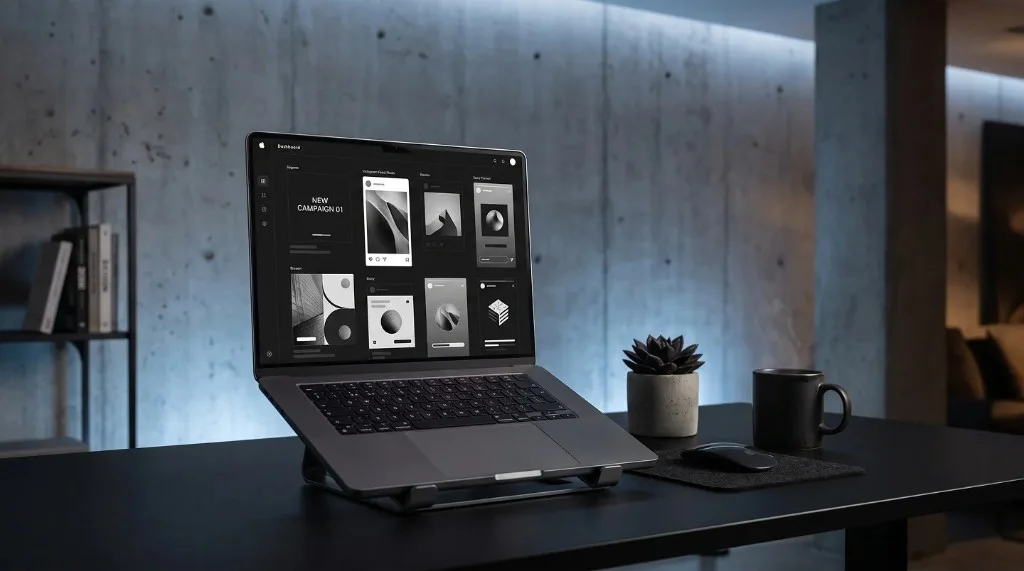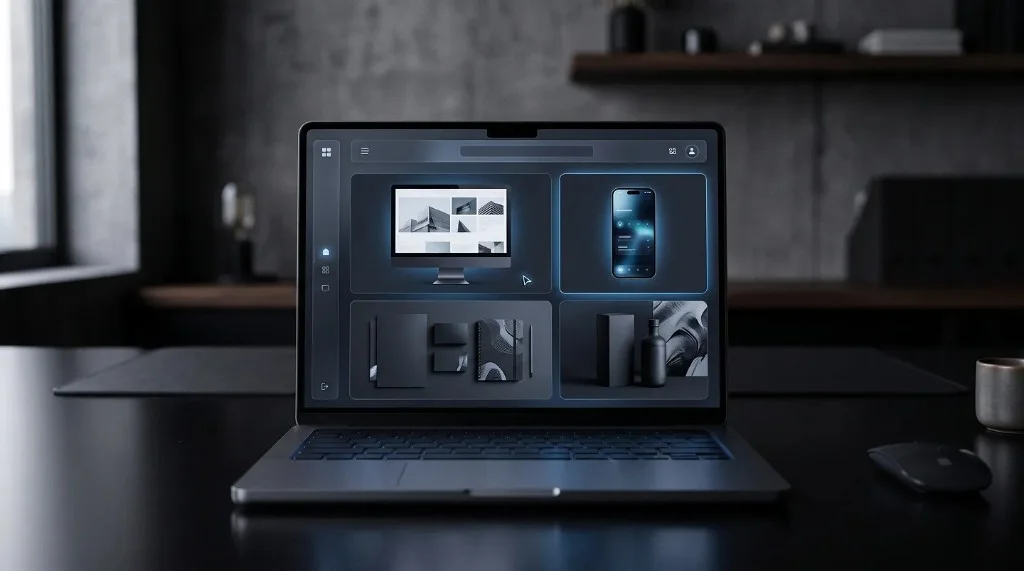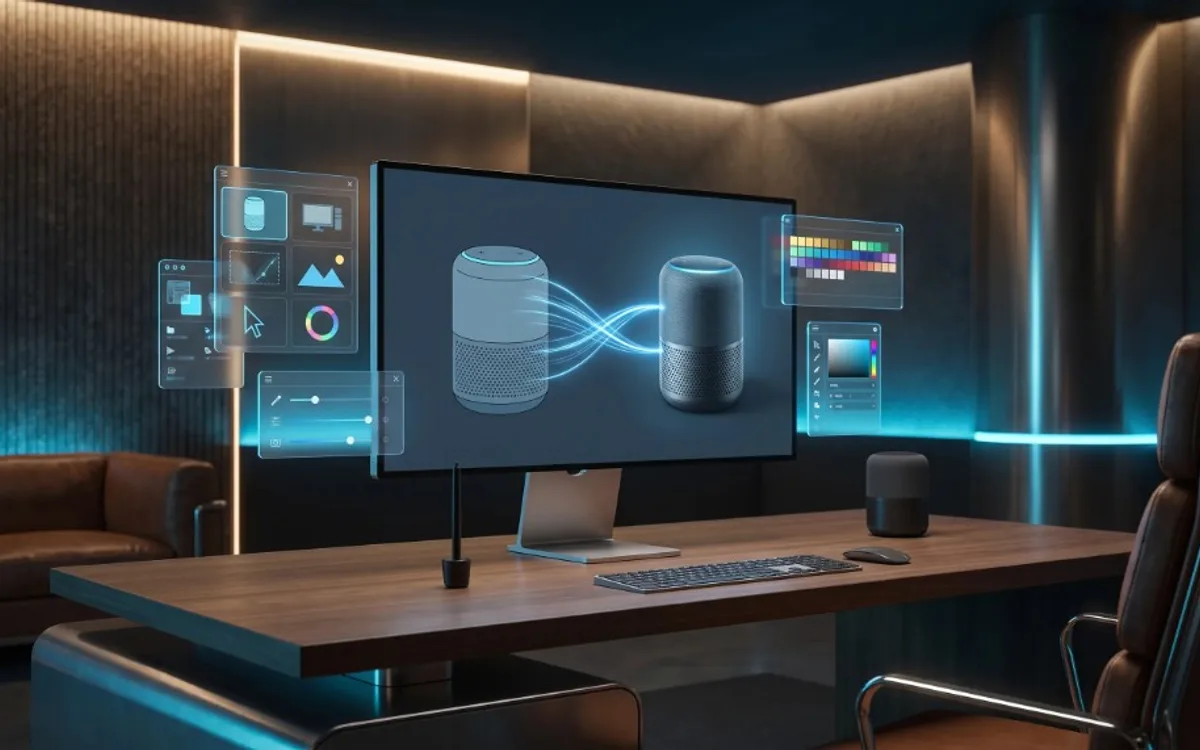
A mockup is a realistic preview of how a design looks in a real setting — on a phone screen, a poster, a t-shirt, or packaging — instead of as a flat, isolated image. It matters because it helps clients, customers, and teams judge a design accurately before it exists in real life, which builds trust and speeds up approval. Anyone can create one today using ready-made templates, without design software or prior experience.
Mockup in Simple Words
A mockup is a realistic preview of how a design will look in real life or in a real environment. Instead of showing a flat image on its own, a mockup places that image inside a context, like a phone screen, a poster on a wall, a laptop display, or packaging on a shelf.
The goal is simple: help people picture the final result before it actually exists. A logo on a plain white background is hard to judge. The same logo shown on a business card, a storefront sign, or a phone case suddenly feels real and easier to evaluate.
You will typically see mockups used for:
- App and website designs
- Product packaging and labels
- Social media posts and ads
- Portfolio presentations
- Print materials like posters and business cards
Why Mockups Matter So Much
A raw design file rarely tells the full story. Clients, customers, and even your own team often struggle to imagine how something will look once it is actually in use. A mockup closes that gap.
There is also a trust factor. A product or app shown inside a clean, realistic mockup looks more finished and more professional than the same asset shown as a plain screenshot. This small difference can influence how people judge the quality of your work, even before they look closely at the actual content.
For freelancers and agencies, this matters even more. A polished mockup can be the difference between a client approving a design quickly and a client asking for endless revisions because they cannot picture the outcome.
Static Mockups vs Animated Mockups
Traditionally, mockups have been static images: a single picture showing your design placed inside a template. These are still useful, especially for portfolios, print layouts, or quick previews.
But there is a newer approach that is becoming increasingly popular: animated mockups. Instead of a single frozen image, your design is shown as part of a short moving scene, such as a card gliding into place or a screen rotating gently. This adds a layer of polish that a still image alone cannot achieve, especially on platforms like Instagram or TikTok where movement naturally draws more attention.
The good news is that you do not need to choose one over the other. With Frametion, you can build an animated scene using your own images and then pause the animation at any point to export a high-resolution still mockup as a PNG or JPG. This means one workflow gives you both a video and a set of polished still images, without recreating anything from scratch.
PNG vs JPG for Mockups
When exporting a mockup, you will usually choose between PNG and JPG. Here is the simple difference:
PNG supports transparent backgrounds, which is useful when you need to place your mockup on top of another design, like a website or a slide, without a visible background box around it.
JPG is a smaller file size and works well when your mockup already has a full background and you do not need transparency.
If you are not sure which one to use, a safe rule is this: use PNG when your mockup needs to blend into another layout, and JPG when it is a final, standalone image ready to be shared as is.
How to Create a Mockup Without Design Skills
You do not need to know design software to create a good mockup today. The process has become much simpler thanks to ready-made templates that already include realistic scenes and lighting.
A simple mockup workflow looks like this:
- Choose a template that fits your goal, such as a phone screen, a card layout, or a product display.
- Upload your own image or design into the template.
- Adjust position, size, and angle using simple sliders until it looks right.
- Pause the preview at the frame you like and export it as a still image, or export the full scene as a video.
This entire process can be done directly inside the Frametion app, without installing any software or learning design tools.
When to Use a Mockup
Mockups are especially useful when you need to:
- Present a design to a client before it is built
- Show off work in a portfolio
- Create polished visuals for social media without filming anything
- Preview how packaging or print materials will look in the real world
- Turn a plain screenshot into something that looks intentional and finished
If any of these sound familiar, a mockup is likely the fastest way to make your work look more professional with very little extra effort.
Frequently Asked Questions
What is a mockup in one sentence?
A mockup is a realistic preview of a design placed inside a real context, like a phone screen, poster, or package, instead of shown as a flat image.
Do I need design software to make a mockup?
No. Ready-made templates already include the scene and lighting — you upload your image and adjust it with simple sliders.
Should I export a mockup as PNG or JPG?
Use PNG when the mockup needs a transparent background to blend into another layout, and JPG when it’s a final, standalone image.
Can one mockup project produce both a video and still images?
Yes. You can build an animated scene and pause it at any frame to export a high-resolution still image, alongside the full video.
Why This Small Step Makes a Big Difference
A mockup is a small step that makes a big difference. It turns a flat, hard-to-judge design into something that feels real and finished, which helps clients approve work faster and helps your content stand out on social media.
If you want to try creating your own mockups, explore the ready-made templates inside Frametion and turn your images into polished, presentation-ready visuals in just a few minutes.