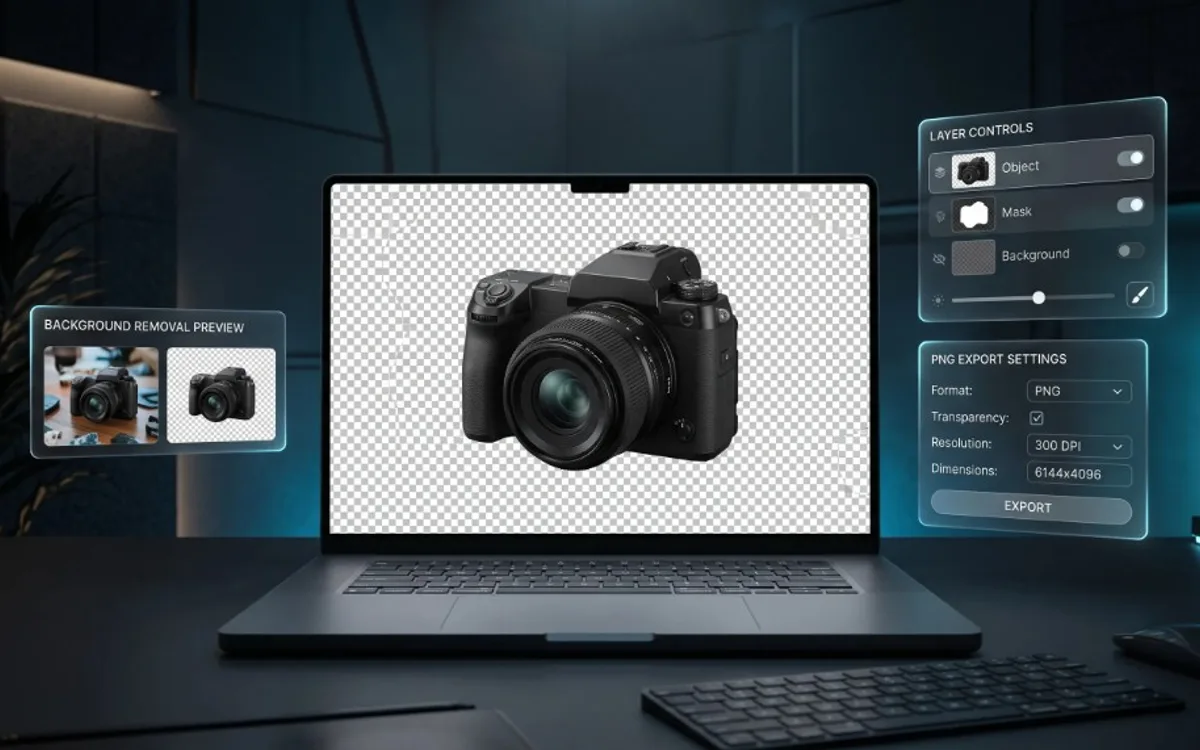
A transparent background uses an alpha channel that controls how see-through each pixel is, so an image can “float” over any background without a white box around it. PNG, WebP, and GIF support transparency, while JPG does not. Getting a clean, professional-looking mockup or overlay usually comes down to choosing one of these transparency-capable formats and exporting at full quality.
What “Transparent” Actually Means
Every digital image is made of pixels, and normally each pixel stores three values: how much red, green, and blue it has. A transparent image adds a fourth value called the alpha channel, which controls how opaque or see-through each pixel is.
An alpha value of 100% means the pixel is fully visible. An alpha value of 0% means the pixel is invisible — whatever is behind it shows through completely. Everything in between creates partial transparency, which is how you get soft shadows, glass effects, or smooth fade-outs at the edge of an object.
This is different from a pixel that’s simply “white” or “black.” A white background is still a color — it will always show up as a white box. A transparent background has no color at all; it’s a hole where the layer underneath shows through.
Why This Matters for Mockups
Mockups are meant to be dropped into other designs — a phone screen placed over a desk photo, a logo placed on a t-shirt, an app screen placed inside a device frame. If that mockup has a solid background, you’re stuck. You’d have to manually cut it out, and depending on the image, that can look rough around the edges (hair, rounded corners, soft shadows, curved screens).
With a transparent background, the mockup is already isolated. You can drop it onto any color, photo, or gradient and it will sit naturally in the scene, as if it was designed to be there from the start. This is why transparency isn’t a “nice to have” for presentation work — it’s often the entire point of exporting an asset in the first place.
If you’re pulling still frames from a motion mockup — pausing the video at the right moment and exporting it as an image — having that export come out with a clean alpha channel means you get a ready-to-use asset instantly, instead of a screenshot you then have to fix in another app.
The Formats That Support Transparency
Not every file format can hold an alpha channel. Here’s a quick reference:
PNG — The standard choice for transparent still images. Lossless quality, widely supported, works everywhere from design tools to websites to presentation software. If you need one image with a transparent background, PNG is almost always the right call.
WebP — A newer format that supports transparency like PNG but with smaller file sizes. Great for web use, though support in older design tools can be spotty.
GIF — Supports transparency, but only in a binary way — a pixel is either fully visible or fully invisible, with no soft edges. This is why GIFs with transparency often have a slightly jagged, pixelated outline. Fine for simple graphics, not ideal for polished mockups.
JPG — Does not support transparency at all. If you export a mockup as a JPG expecting a transparent background, you’ll always get a solid white (or black) fill instead. This trips up a lot of beginners.
MOV with alpha / WebM (VP9) — For motion content, transparency can also exist in video. This lets you export an animated element — a floating UI card, a logo animation, a moving mockup — that can be layered over any video background, the same way a PNG layers over any image.
Common Use Cases
- Product and app showcases — placing a device mockup over branded backgrounds, photos, or gradients without a visible frame around it.
- Social media assets — logos, icons, or animated elements that need to sit cleanly on top of a post, story, or ad template.
- Portfolio presentations — displaying multiple project mockups on a single page or slide, all floating on the same background for visual consistency.
- Video overlays — motion elements (like a lower-third, badge, or animated call-to-action) that need to appear on top of existing footage.
- Compositing — combining several separate elements (a background, a mockup, a shadow, some text) into one final image or scene, each layer independently editable.
A Few Things to Watch For
Check for “fake” transparency. Some exports look transparent in a preview but actually have a white or checkered background baked in. Always test by dropping the asset onto a colored or patterned background — if you see a box around it, the transparency didn’t export correctly.
Watch your edges. Soft shadows and rounded corners rely on that partial-transparency range (the in-between alpha values). If an export tool flattens everything to fully-visible or fully-invisible, edges can look harsh or pixelated. This is usually a sign the file was saved in a format that doesn’t support soft alpha, like GIF.
Compression can matter. Some compressed PNGs or WebP files reduce color depth to save space, which can introduce slight banding around transparent edges — especially with shadows or gradients. If you’re using the asset for something high-visibility (like a hero image), export at the highest quality setting available.
Frequently Asked Questions
Which file formats support transparent backgrounds?
PNG, WebP, and GIF all support transparency. JPG does not — it always fills transparent areas with a solid color.
Why does a PNG sometimes look transparent but isn’t?
Some exports bake in a white or checkered background instead of a real alpha channel. Test by dropping the file onto a colored background — if you see a box, transparency didn’t export correctly.
Is GIF transparency as good as PNG transparency?
No. GIF transparency is binary, so pixels are either fully visible or fully invisible, which can create jagged edges. PNG supports soft, partial transparency for clean edges and shadows.
Can video have a transparent background?
Yes. Formats like MOV with alpha or WebM (VP9) support transparency in video, letting an animated element layer over any video background.
Getting Transparency Right
Transparency is one of those details that’s invisible when done right and obvious when done wrong. Understanding how it works — and choosing the right format for the job — is what separates a mockup that plugs neatly into any design from one that always needs extra cleanup. Once you know to look for it, you’ll notice how often professional-looking presentations rely on nothing more than a well-exported transparent PNG.